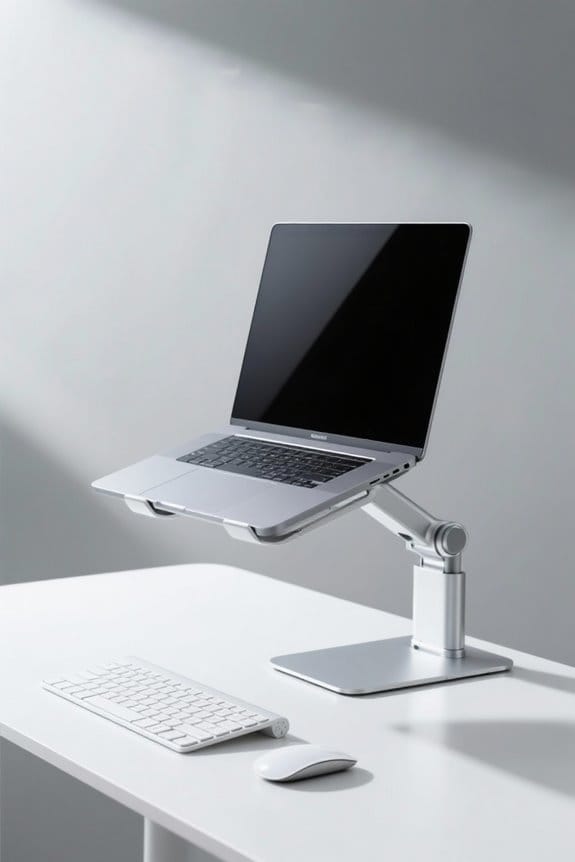
To arrange your monitor, keyboard, and mouse for neutral posture, center the monitor in front of you, at or slightly below eye level, about 20 inches away. Place the keyboard at elbow height, ensuring wrists are straight and aligned. Keep the mouse close to the keyboard, maintaining a relaxed grip. Adjust your chair for proper leg positioning. This setup promotes ergonomic support and reduces discomfort. Learn more about optimizing your workspace for health and comfort.
Key Takeaways
- Position the monitor directly in front, with the top at or slightly below eye level, about an arm’s length away.
- Ensure the keyboard is at elbow height, maintaining a straight line from shoulders to wrists while keeping wrists flat.
- Place the mouse close to the keyboard and at elbow height to support neutral wrist posture.
- Use a chair that allows feet to rest flat on the floor and elbows to achieve a 90-110 degree angle.
- Optimize workspace with ergonomic accessories, and declutter for easy movement and accessibility.
Importance of Neutral Posture
The importance of neutral posture cannot be overstated in the context of ergonomic workspace design. This alignment minimizes the risk of musculoskeletal disorders, supporting the spine, shoulders, and wrists in their natural positions. Achieving the correct monitor height and desk height, along with proper placement of the keyboard and mouse, fosters comfortable alignment. This can lead to improved efficiency and productivity during long work sessions. Additionally, maintaining a neutral posture enhances blood circulation and reduces muscle strain. By keeping joints in their natural positions, the likelihood of repetitive strain injuries is greatly lowered. Ultimately, a well-designed workspace prioritizing neutral posture can enhance focus and alertness, reducing distractions from discomfort and pain. Prioritize ergonomic arrangements for sustained comfort and health. Adjustable height desks offer ergonomic benefits and can be key in achieving the correct posture by allowing users to switch between sitting and standing.
Monitor Positioning Guidelines

Achieving a neutral posture is integral to a functional workspace, especially regarding monitor positioning. The monitor should be centered directly in front of the user. Position the top of the screen at or slightly below eye level to support neutral neck posture. Keep the monitor about an arm’s length away, approximately 20 inches, to reduce eye strain. It is essential to tilt the monitor back 10° to 20° to avoid glare. For bifocal wearers, adjust the height lower and tilt it back 30° to 45° for better visibility. Ensuring that the keyboard is close and elbows are close to the body during use enhances comfort. Implement these guidelines to create an ergonomic, sustainable workspace. Choosing an office chair with adjustable lumbar support can further enhance neutral posture by providing necessary back support.
Recommended Products

SATIN-ETCHED GLASS: A highly durable and smooth tempered glass work surface provides a luxurious feel while being forgiving to smudges, scratches, and fingerprints.
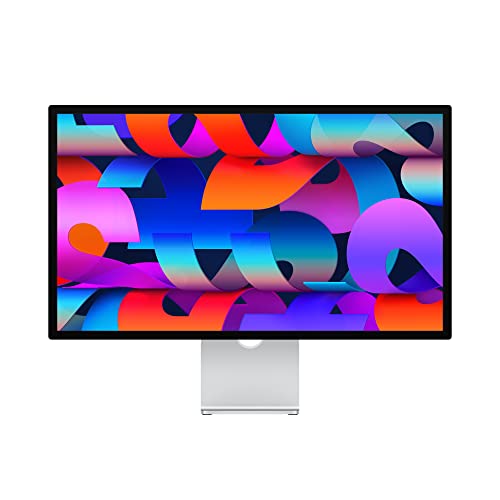

Immersive 27-inch 5K Retina display with 600 nits of brightness, support for one billion colors, and P3 wide color

【 Sturdy & Adjustable Stand 】 Built on the PROAIM Alpha Stand with a 5/8" baby pin mount, offering full height adjustability for a customizable workstation setup.
Keyboard Ergonomics

Proper keyboard ergonomics are essential for maintaining comfort and preventing strain during long hours of typing. The keyboard should be positioned at elbow height, ensuring a straight line from the shoulders to the wrists. This position allows users to type comfortably without risking injury. It’s important to keep wrists straight, avoiding upward or downward bending, which may lead to discomfort. A slight backward tilt of about 10° can help maintain flat wrists and reduce compression. An ergonomic keyboard can also promote better alignment and natural hand positions. Additionally, the keyboard should be close enough for the elbows to remain near the body, minimizing excessive reaching and preventing shoulder and back strain. For a healthier workspace, evaluate your keyboard setup today. Adding a non-slip surface under your keyboard can further enhance stability and comfort, similar to how chair mats improve safety and ergonomics in office environments.
Recommended Products

Mouse slide creates Mouse-Forward position for improved ergonomic comfort.

As an affiliate, we earn on qualifying purchases.

Provides maximum wrist and forearm support for heavy computer users

EXTRA SUPPORT: Contour Design's ArmSupport Red is a cushioned desk extender designed to relieve 18 lbs. of strain from your shoulders and neck. The ArmSupport Red fits almost all sit/stand desk options and helps reduce reach.
Mouse Placement Tips

Effective mouse placement is essential for creating an ergonomic workspace. For ideal positioning, users should keep the mouse close to the keyboard, ideally aligned with it, to prevent unnecessary reaching. It is vital to maintain the mouse at elbow height to promote a neutral wrist posture and reduce strain. Adopting mouse placement tips also includes using a relaxed grip when holding the mouse. Movement should originate from the elbow and shoulder, avoiding excessive wrist motion. Additionally, users should adjust mouse sensitivity to facilitate light touch operation. This adjustment minimizes unnecessary arm movement, thereby reducing fatigue. By employing ergonomic mice and following these guidelines, individuals can enhance comfort and productivity while working. An effective cable management system is crucial for maintaining a clean workspace and minimizing distractions, enhancing productivity alongside proper mouse placement.
Recommended Products

Cabinet combines a lateral file drawer with a sliding printer shelf and two storage drawers, keeping everything conveniently within reach. Perfect alone or as the base for the Sequel 6112 Return.

49 inches ultrawide 32: 9 dual QHD (5120 X 1440) Display

Designed for smaller spaces - yet full of innovative features - this compact desk includes a multifunctional keyboard drawer and wire management system that helps to provide an organized and efficient workstation.
Chair and Desk Configuration

To create a comfortable and efficient workspace, attention must be paid to chair and desk configuration. The chair height should allow feet to rest flat on the floor, ensuring knees form a right angle and thighs remain parallel to the ground. This setup supports proper posture. Additionally, the desk height must enable elbows to maintain a 90-110 degree angle while typing. This alignment promotes a straight line from arms to hands, enhancing comfort. It is essential to keep legroom uncluttered for easy movement of legs. If a fixed desk is present, elevating the chair and using a footrest can help achieve this. Finally, padding hard desk edges can minimize wrist stress, ensuring a pleasant workspace experience. Multi-functional designs like some eyeglass holders can help organize space efficiently, reducing clutter and contributing to a neat and ergonomic workspace.
Recommended Products

The curved design of the wide wooden handrail firmly supports the arm.

The Seatcraft experience is where craftsmanship meets functionality. Engineered for unparalleled quality and ergonomic comfort. Sit with us and experience the decades of mastery and passion we’ve put into our seats. Don’t settle for less.

【P2.5 Flexible LED Screen】Equipped with a flexible LED screen with P2.5 pixel pitch, it has good high-definition display effect, with vivid, delicate and full-color images. It can adapt to various brand promotions, event promotions and dynamic content display, attract the attention of passers-by and enhance the overall texture of the venue.
Additional Ergonomic Practices
Attention to ergonomic practices can greatly enhance workplace comfort and productivity. Position the monitor directly in front of the user, ensuring it is slightly below eye level. This setup helps promote a neutral neck posture and reduces strain. Maintain an arm’s length distance of 20 to 40 inches to minimize eye strain. Use a mouse and keyboard at or slightly below elbow height to keep wrists relaxed. Utilizing a keyboard tray can help achieve this alignment. Place frequently used items within easy reach to avoid stretching. Implementing these strategies will help you feel more comfortable and focused throughout the workday. Prioritizing these options encourages sustainable craftsmanship in designing ergonomic workplaces for ideal health and efficiency. Additionally, address labels for printer offer versatility for home and office organization tasks, enhancing productivity and organization in various projects.
Recommended Products

Complete your workspace: Large 17.5 x 9.5-inch keyboard tray comfortably fits full sized keyboards; retractable mouse tray accommodates any size mouse and saves space when not in use; pair with the Neo-Flex Dual Monitor Wall Mount (28-514-800) to create a full digital imaging workstation
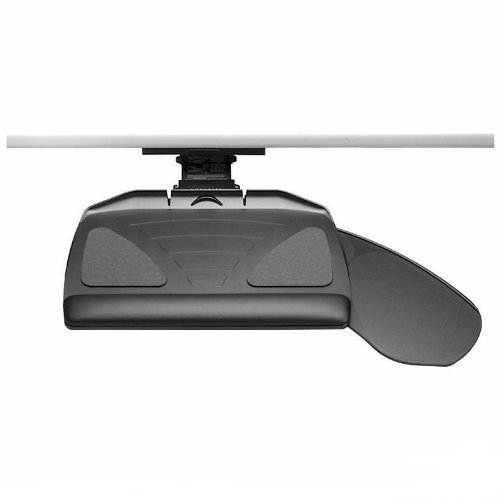
Ergonomic Design: Features a patented Banana-Board system with an adjustable Pinnacle 2 Arm and Thin-Glide track for ultimate comfort and style

Electric height adjustable mobile workstation for daily professional use – Motorized height adjustment from 31" to 50.75" allows effortless transitions between sitting and standing, supporting healthier movement without manual lifting or interruption.
Regular Breaks and Movement
Although many individuals may focus solely on their tasks, regular breaks and movement are essential for maintaining an ergonomic work environment. Taking breaks every 20 to 30 minutes can greatly reduce muscle strain and fatigue. By standing up or stretching during these intervals, individuals can promote better blood circulation, leading them to feel better throughout the workday. Simple tips, such as wrist and shoulder stretches, can alleviate tension and maintain flexibility in the back and arms over time. A sit-stand work style fosters a healthy balance between sitting and standing. Anti-fatigue mats can further enhance comfort by reducing joint pain during extended standing periods. Remember, movement is vital, as it allows individuals to shift postures and avoid discomfort. Prioritize regular breaks for improved comfort and overall well-being.
Frequently Asked Questions
Where Should You Position Your Keyboard and Mouse to Maintain Neutral Posture?
To maintain neutral posture, the keyboard and mouse should align at elbow height for ideal wrist alignment. Confirm chair adjustment supports shoulder relaxation, with fingers poised comfortably, and maintain appropriate screen distance for ergonomic efficiency.
Where Should Keyboards Be Placed to Promote Neutral Risk Posture?
A study showed that employees with proper ergonomic setups experienced reduced strain. Keyboards should be positioned at elbow height, ensuring wrist alignment, a 90-degree elbow angle, and close proximity to the monitor for comfort and efficiency.
What Are the 4 Posture Rules for Keyboarding?
The four posture rules for keyboarding include maintaining proper keyboard height, ensuring an appropriate wrist angle, aligning elbow position, and adjusting chair height, while also considering monitor distance, screen glare, and foot placement.
What Is the Ergonomic Position for Keyboard and Mouse?
A well-tuned workstation resembles a finely tuned orchestra. The ergonomic keyboard rests at elbow height, mouse placement aligns symmetrically, wrist alignment remains neutral, ensuring forearm support and ideal body posture while employing effective typing techniques.