To set up a workstation for people with lower back pain, guarantee an ergonomic design. Adjust the chair for lumbar support and maintain a natural spine curve. Position the monitor at eye level to avoid neck strain. Keep feet flat on the floor and arrange the keyboard and mouse for easy reach. Remember to incorporate microbreaks for stretching and movement. This approach promotes sustainable comfort and can help alleviate pain. Further insights on adjustments and enhancements await.
Key Takeaways
- Position your monitor at eye level to minimize neck strain and maintain proper posture while sitting.
- Choose a chair with built-in lumbar support to support your lower back and keep the spine’s natural curve.
- Ensure feet rest flat on the floor or a footrest, maintaining a 90-degree angle at the knees for optimal blood flow.
- Organize desk accessories within easy reach to keep elbows close to the body and wrists in a neutral position.
- Take microbreaks every 30-60 minutes to stand, stretch, and relieve muscle tension, promoting better overall well-being.
Why Your Desk Could Be Hurting Your Back
Many individuals may not realize that an improperly set up desk can contribute to significant back pain. Poor posture, often caused by a lack of lumbar support, leads to discomfort during extended hours of sitting. Prolonged immobility can strain the cervical and lumbar spine, resulting in tight hip flexors and rounded shoulders. An ergonomic desk is essential for maintaining proper posture. It allows for adjustable heights, promoting a healthier sitting position. When the desk height is incorrect, the body may compensate, lasting in chronic pain. Early signs include muscle soreness after sitting. To prevent further issues, individuals should consider evaluating their workstation. Investing in ergonomic furniture, such as ergonomic keyboard trays, can enhance comfort and overall well-being while safeguarding against long-term damage.
Signs Your Desk Setup May Be Causing Chronic Back Pain

A poorly configured workstation often signals issues that extend beyond mere discomfort. Regular soreness or stiffness in muscles and joints can indicate your desk setup is contributing to chronic back pain. If standing or stretching provides relief, the seated position at the workstation may be straining your back and neck. Leaning forward to see the monitor is a sign of poor ergonomics that can lead to ongoing discomfort. Additionally, frequent neck tension or headaches might relate to improper monitor height and position, impacting posture. Finally, if lower back pain intensifies throughout the workday, it suggests that the desk setup is not supporting proper spinal alignment. Evaluating these signs is critical for developing an ergonomic and sustainable workspace. Incorporating ergonomic chairs with proper lumbar support can significantly improve posture and reduce back pain, promoting a healthier work environment.
What an Ergonomic Desk Setup Should Look Like

Setting up an ergonomic desk provides essential support and comfort for those working long hours. The monitor should be at eye level, with the top third aligned with the user’s line of sight. The chair must offer built-in lumbar support, allowing the lower back to rest comfortably. Feet should rest flat on the floor or on a footrest to maintain a 90-degree knee angle. Desk accessories, like a keyboard and mouse, need to be positioned close enough to keep elbows near the body while ensuring wrists remain neutral. Ideal lighting reduces eye strain and enhances focus. Finally, good workspace organization is crucial for efficiency. Regular cleaning is recommended for the longevity of leather chairs, helping to maintain their appearance and durability. Incorporate microbreaks every 30-60 minutes for stretching and relief, supporting ongoing ergonomic health.
Importance of Lumbar Support

Lumbar support plays a crucial role in promoting spinal health and comfort during long periods of sitting. Proper lumbar support helps maintain the natural curve of the spine, preventing slouching and reducing lower back pain. By applying lumbar cushion benefits, users can decrease pressure on their spinal discs. This reduction can help prevent chronic pain and discomfort. Ergonomically designed chairs with adjustable support features cater to individual spinal curvature, ensuring optimal comfort for various body types. Regular use of lumbar support tools, such as cushions or adjustable chairs, greatly enhances spinal health improvement. This practice not only manages existing back pain but also helps prevent future issues. Implementing adequate lumbar support is essential for productivity and overall well-being in the workplace. Many high-quality cushions are designed to provide ergonomic support, such as U-shaped or L-shaped designs that enhance spinal alignment and relieve pressure.
Adjusting Monitor Height for Optimal Posture

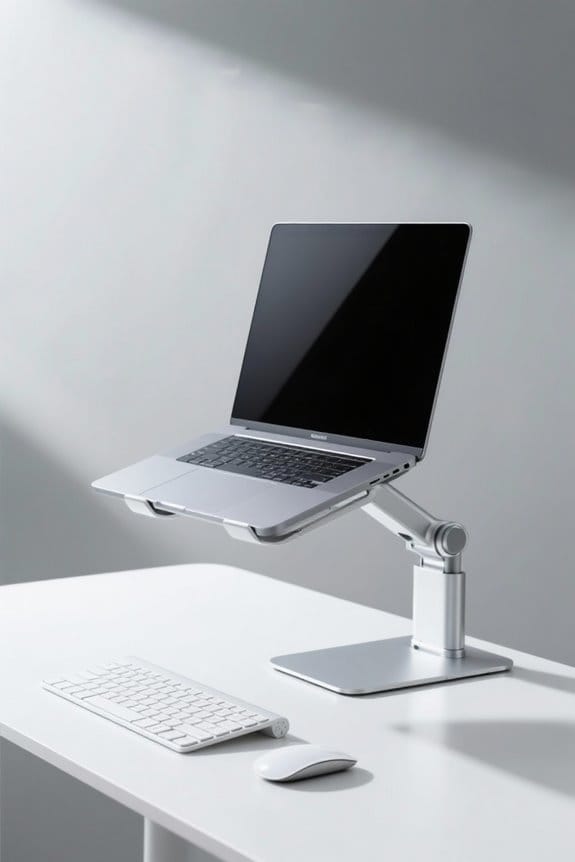
Proper monitor height adjustment is essential for maintaining ideal posture at a workstation. The monitor should be positioned so that the top of the screen is at or just below eye level. This promotes a neutral neck posture and helps reduce strain on the neck and upper back. Using a monitor riser provides numerous benefits by elevating the screen to the correct height. Incorporating screen glare solutions can enhance visibility, contributing to visual fatigue relief. Frequent adjustments to the monitor height allow for necessary changes in work tasks. Proper alignment can prevent forward leaning and support relaxed shoulder positions, which is vital for avoiding lower back pain. Monitor stands with drawers offer additional organizational benefits alongside ergonomic advantages. Consider implementing these strategies for a more ergonomic workstation.
Keyboard and Mouse Placement for Comfort
Creating a comfortable workspace involves careful consideration of keyboard and mouse placement. Both should be set at elbow height to maintain a 90-degree angle in the elbows, keeping wrists in a neutral position. This helps prevent strain and discomfort. For effective mouse placement, position the mouse close to the keyboard, ideally within a few inches, to minimize awkward reaching. Incorporating wrist support provides additional benefits, reducing pressure and promoting a healthier posture while typing. Proper keyboard angle adjustment is essential for comfort and function. Make sure your chair allows you to keep your feet flat and your shoulders relaxed. When the workstation is set up correctly, users can work more efficiently and comfortably, thereby enhancing productivity. Selecting a high-quality mesh chair can significantly improve comfort and support during long working hours.
Incorporating Microbreaks Into Your Work Routine
Incorporating microbreaks into a work routine is essential for reducing lower back pain and enhancing comfort. Ideally, individuals should take microbreaks every 30-60 minutes, lasting 2-3 minutes each. This microbreak frequency helps counteract muscle tension from prolonged sitting. During these short breaks, standing, stretching, or walking can considerably improve overall well-being. Stretch types targeting the lower back and hip flexors alleviate tightness, promoting better posture and comfort. Research shows that these breaks yield productivity benefits, allowing workers to return to tasks feeling refreshed. To help establish this practice, individuals can set reminders or use apps to log their microbreaks. This fosters a healthier workstation environment geared toward sustaining ergonomic principles. Regular movement is key to long-term relief. Using anti-fatigue mats can further enhance comfort and reduce fatigue for individuals who stand during their microbreaks, promoting a healthier and more productive work environment.
How Chiropractic Care Can Assist in Managing Back Pain
Microbreaks enhance movement during work, yet some individuals may need additional support to alleviate back pain effectively. Chiropractic care focuses on spinal adjustments to realign vertebrae. This process can considerably reduce lower back pain and improve overall mobility. Chiropractic adjustments also target muscle tension through manual therapy techniques, providing relief for persistent discomfort from prolonged sitting. Chiropractors perform postural evaluations to identify misalignments contributing to pain. They then develop correction strategies tailored to individual needs. Additionally, incorporating rehabilitative exercises prescribed by chiropractors can strengthen muscles supporting the spine. This approach enhances stability and reduces injury risks. Combining chiropractic interventions with ergonomic workstation adjustments, such as using high back support pillows, leads to sustainable back pain management and improved quality of life. Seek professional help for ideal results.
Frequently Asked Questions
What Ergonomic Friendly Workstation to Reduce Back Pain?
An ergonomic workstation to reduce back pain includes best chair options with lumbar support, an appropriate desk height allowing feet to rest flat, and keyboard positioning that encourages neutral wrist alignment and keeps elbows close to the body.
What Is the 20 8 2 Rule?
The 20-8-2 rule emphasizes a productivity balance, suggesting 20 minutes of sitting, 8 minutes of standing, and 2 minutes of movement during workstation breaks, enhancing circulation and reducing discomfort associated with prolonged sitting.
How to Set up a Desk to Avoid Back Pain?
To set up a desk to avoid back pain, guarantee chair height supports lower back, position the monitor at an ideal distance to reduce strain, and adjust keyboard angle for comfortable wrist alignment, promoting ergonomic health.
How to Set up a Workstation Ergonomically?
For ergonomic workstation setup, make sure desk height allows elbows at 90 degrees, prioritize chair support to maintain lumbar curve, and adjust foot placement to keep feet flat on the ground or on a footrest.