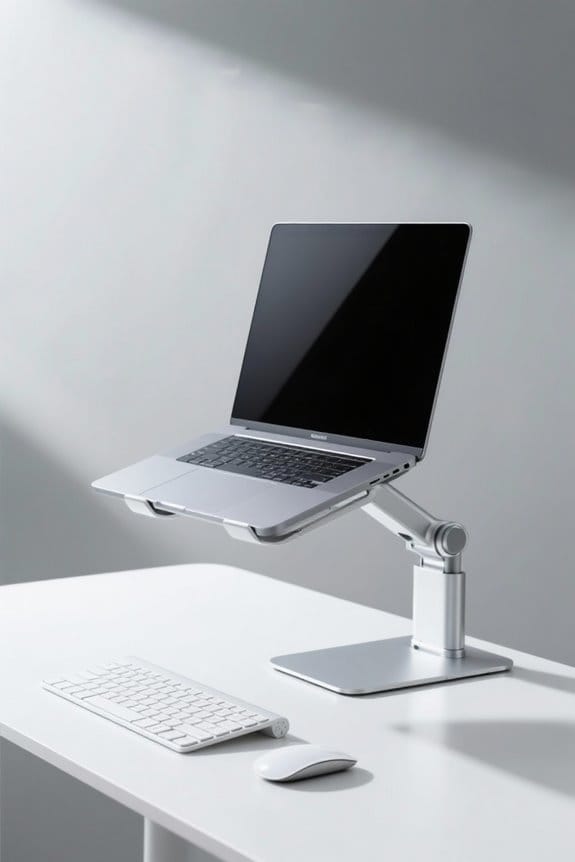
A visual checklist for an ergonomic computer workstation enhances comfort and efficiency. Key components include adjustable chairs with lumbar support. Monitors should be at eye level, an arm’s length away. Keyboards and mice need to promote neutral wrist posture. Ensuring legroom beneath the desk and proper lighting is essential. Regular breaks and movement can improve focus and reduce fatigue. This checklist supports healthy work practices, emphasizing the importance of an ergonomic setup to foster well-being and productivity. Additional insights await.
Key Takeaways
- Ensure chair height allows feet to rest flat on the floor and includes adjustable lumbar support for spine alignment.
- Position the monitor at eye level, approximately an arm’s length away, with the top line just below eye level.
- Use keyboards and mice that promote neutral wrist posture to reduce strain during typing and mouse use.
- Maintain sufficient legroom under the desk to prevent discomfort and improve circulation.
- Incorporate regular breaks and movement, following the 20/20/20 rule to alleviate eye strain and boost energy.
Understanding the Importance of Ergonomics
Understanding the importance of ergonomics is critical for creating a healthy work environment. Ergonomics focuses on optimizing the interaction between individuals and their work settings. Effective workstation design enhances safety, comfort, and efficiency. A good ergonomic workstation considerably reduces the risk of musculoskeletal disorders, which can lead to lower healthcare costs. Research shows that well-planned ergonomic solutions can boost productivity by 15%. Proper ergonomic design involves factors like chair height, monitor placement, and keyboard positioning. Investing in adjustable furniture and supportive accessories promotes comfort and satisfaction among employees. By incorporating these principles into workplace strategies, businesses guarantee their workforce remains healthy and engaged. Organizations must prioritize ergonomic design to foster a productive, sustainable work environment. Adjustable seat heights between 17 and 22 inches are crucial for customization and comfort, reducing fatigue during prolonged sitting.
Key Components of an Ergonomic Workstation

An ergonomic workstation incorporates several key components that enhance user comfort and productivity. Importantly, chairs should be adjustable, providing lumbar support while allowing users to keep their feet flat on the floor with knees at 90 degrees. Monitors must be positioned at eye level, around an arm’s length away, to reduce neck strain. Keyboards and mice should promote a neutral wrist posture, with forearms parallel or slightly declined to minimize discomfort. The design also requires sufficient legroom beneath the desk to avoid obstruction. Additionally, adequate lighting is essential. It should minimize glare on screens, with task lighting enhancing visibility and preventing eye strain. Investing in these features fosters an ergonomic workspace that supports long-term health and efficiency. Incorporating an ergonomic keyboard tray can further enhance comfort by allowing for adjustable height and tilt options, which promote natural wrist alignment and reduce strain.
Proper Chair Adjustment for Back Support

Proper chair adjustment plays a vital role in providing adequate back support during long hours of computer work. To achieve this, the chair height should be set so that the feet rest flat on the floor, creating a 90-degree angle at the knees for proper leg support. Additionally, lumbar support must be guaranteed; the backrest should contour snugly to the lower back to maintain neutral spine alignment. Chair depth should allow a 2-4 inch gap between the back of the knees and the seat’s edge. Armrests should be positioned so that shoulders stay relaxed, with elbows near the body at a 90-degree angle. Regular adjustments are necessary to support posture changes throughout the day. Prioritize ergonomic comfort for peak productivity. Investing in ergonomic chairs can yield long-term health benefits by preventing musculoskeletal issues and enhancing productivity.
Monitor Placement and Viewing Distance

When setting up a workspace, monitor placement and viewing distance are essential for maintaining ergonomic health. The monitor should be positioned directly in front of the user at an arm’s length, approximately 20-30 inches away. This setup encourages healthy posture and reduces neck strain. The top line of the monitor screen should align with or sit slightly below eye level, allowing for a natural downward gaze. In dual monitor setups, the primary monitor must be centered, while the secondary monitor should angle at about 30 degrees. Proper viewing distance guarantees comfort when reading text. Additionally, consider using a curved or ultra-wide monitor to enhance ergonomic alignment. Attention to monitor placement can considerably complement the use of an ergonomic keyboard. For enhanced workspace efficiency and organization, consider investing in monitor stands with drawers, which offer ergonomic benefits and integrated storage for office supplies.
Keyboard and Mouse Positioning for Comfort
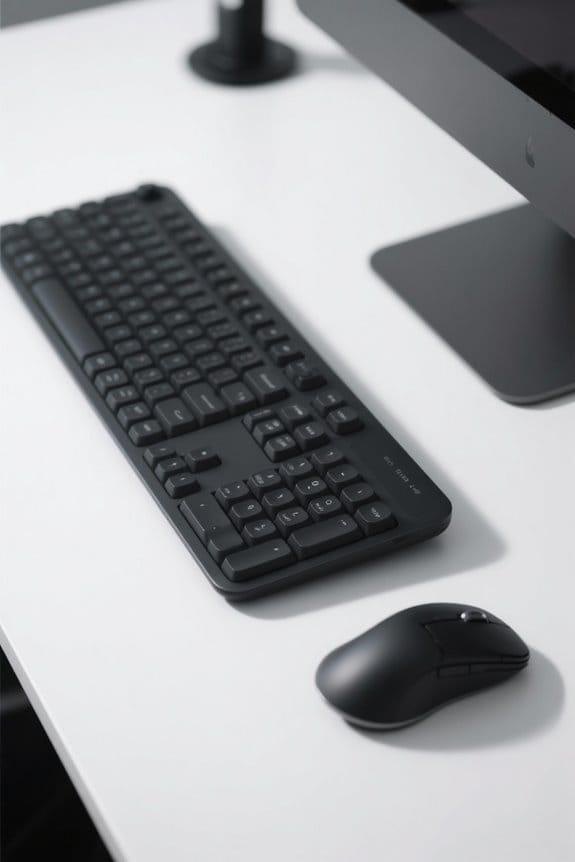
Effective keyboard and mouse positioning plays an essential role in maintaining ergonomic comfort at a workstation. Proper keyboard positioning should allow elbows to remain at a 90-degree angle while keeping wrists in a neutral position. Utilizing wrist rests can further minimize strain and help prevent carpal tunnel syndrome. The mouse needs to be placed close to the body, adjacent to the keyboard, to reduce unnecessary reaching. This placement promotes relaxation in the upper arm and elbow, contributing to better posture. Additionally, selecting an ergonomic mouse with a comfortable shape enhances ease of access and movement. Users are encouraged to assess their setups critically, ensuring ideal alignment for long-term comfort and productivity. Prioritize adjustments for a sustainable and healthy workspace. Desks with adequate capacity promote better organization of office essentials, which can enhance the overall ergonomic setup and contribute to an efficient workspace.
Incorporating Regular Breaks and Movement
Incorporating regular breaks is essential for enhancing a productive work environment. Workers should aim for breaks every hour to help muscles rest and recover, reducing the risk of injuries. The 20/20/20 rule is also beneficial; after 20 minutes of screen time, individuals should look at something 20 feet away for at least 20 seconds. Short micro-breaks, lasting just 30 seconds or a minute, can relieve discomfort and boost mental focus. Brief activities, such as stretching or walking, elevate energy levels and cognitive performance. Anti-fatigue mats can further improve comfort during prolonged standing periods, reducing strain on feet, knees, and back. By following this checklist designed to evaluate what is needed for breaks, employees can achieve higher job satisfaction and decrease burnout effectively.
Additional Tips for an Enhanced Ergonomic Setup
Creating an ergonomic workspace is essential for enhancing comfort and productivity. To achieve an ideal ergonomic setup, verify the chair has adjustable height and lumbar support. This encourages a neutral spine position. The monitor should be placed directly at eye level, about an arm’s length away, to reduce neck strain. It is also important to use a keyboard with a negative tilt, promoting neutral wrist positioning. Frequent items should be kept within arm’s reach, minimizing excessive stretching and twisting. Implement regular breaks every hour and follow the 20/20/20 rule to combat eye fatigue. By incorporating these tips, individuals can create a workspace that supports their well-being and efficiency in a sustainable manner. Adding a high-density memory foam cushion to your chair can provide exceptional pressure relief and enhance overall seating comfort during long work hours.
Frequently Asked Questions
How Often Should I Take Breaks During My Workday?
Taking breaks every 60 minutes acts as a rejuvenating breeze for both body and mind. Break frequency greatly enhances productivity impact while safeguarding physical health and bolstering mental well-being, fostering a balanced work environment.
Can Standing Desks Improve My Ergonomics?
Standing desks can enhance ergonomics by providing posture support, leading to longevity improvements and potential productivity impact. Research suggests that their use may encourage regular movement, reducing discomfort associated with prolonged sitting during work hours.
What Accessories Can Enhance My Ergonomic Setup?
Various accessories can enhance an ergonomic setup. Monitor stands elevate screens, wrist supports alleviate strain, footrests benefit posture by providing support, and keyboard trays facilitate comfortable typing angles, promoting overall health and productivity during computer use.
Is There an Ideal Temperature for a Workspace?
The ideal temperature for a workspace typically ranges from 68 to 72 degrees Fahrenheit. Effective temperature regulation, suitable workspace humidity, best airflow, and seasonal adjustments contribute greatly to overall comfort and productivity in the environment.
How Can Glare Affect My Workstation Ergonomics?
Glare considerably disrupts workstation ergonomics, with studies showing a 30% decrease in productivity. Effective glare reduction involves proper screen placement, window treatments, and lighting adjustments to create a comfortable working environment for ideal focus.